Migrating to SepticMind: How to Import Your Data From Any System
By the SepticMind Editorial Team
Data migration concerns are the most common reason companies delay switching to better software. The concern is understandable. You've built up years of customer records, service history, and system data. The thought of losing any of it, or spending weeks re-entering it manually, makes switching feel more painful than it should.
TL;DR
- Migrating to SepticMind: How to Import Your Data From Any System is designed to address the specific workflow and compliance requirements of septic service operations.
- Purpose-built septic software handles permit tracking, state inspection report templates, and tank data management that generic platforms do not offer.
- Companies managing ATU contracts, multi-county permit portfolios, or real estate inspection volume need software designed around those workflows.
- Mobile access allows field technicians to complete and submit inspection reports before leaving a property.
- Cloud-based platforms ensure records are accessible from any device and backed up automatically.
- Switching costs from generic software are real, so evaluating septic-specific platforms early saves migration pain later.
Companies that complete data migration before going live have four times higher first-month adoption rates. The preparation work pays off in smooth rollout and immediate team confidence.
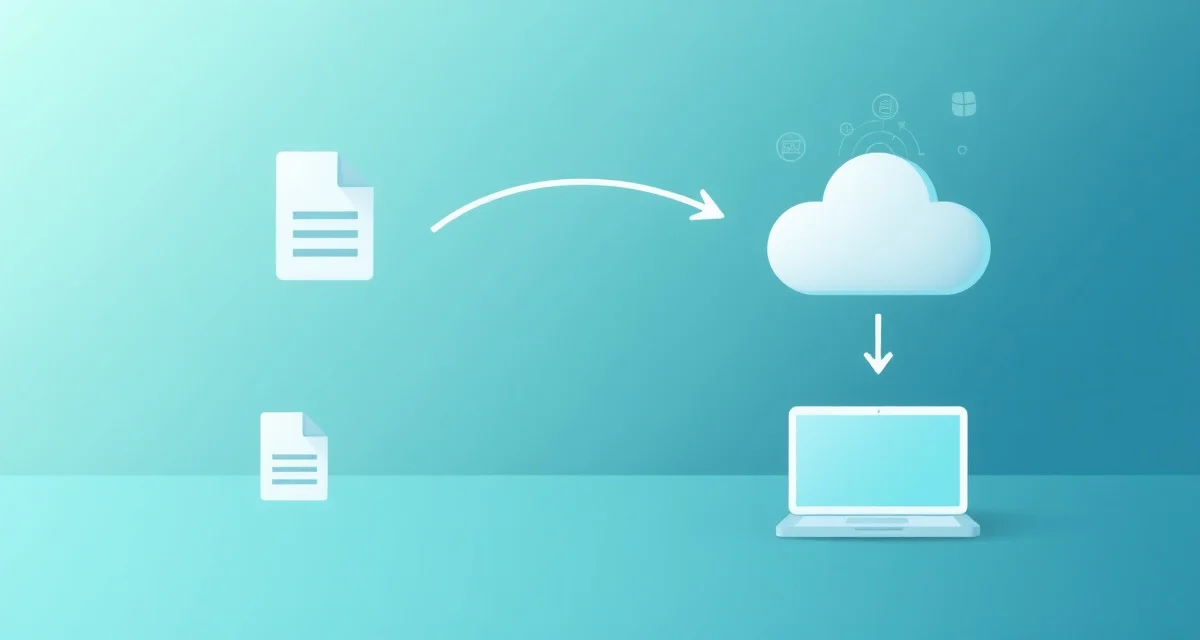
SepticMind's import tool accepts customer data in CSV format and maps fields from any prior system. Here's exactly how the migration works and how to do it right.
What Can Be Migrated
Before preparing your data, understand what transfers and what needs to be rebuilt:
Migrates directly:
- Customer name, address, phone, email
- System type (conventional, mound, ATU, etc.)
- Tank size and capacity
- Installation year
- Prior service dates
- Service notes from prior visits
- System-specific data fields you've recorded
Requires manual entry or recreation:
- Photos from prior service visits (photos need to be attached to job records after migration)
- Attachments and scanned documents (need to be uploaded to new records)
- Custom report configurations specific to old software
Doesn't transfer but rebuilds automatically:
- Scheduling templates and recurring job rules (you set these up once in SepticMind)
- Compliance templates (these load from SepticMind's database based on state and county)
How to Prepare Your Data for Migration
How do I prepare my data for migration to SepticMind?
Start with a data export from your current system. Most software platforms have an export function that produces a CSV or Excel file. Export your customer records with as much data as possible:
- Customer name (ideally split first/last if possible)
- Service address (street, city, state, zip)
- Mailing address if different
- Phone numbers (primary and secondary)
- Email address
- System type
- Tank size
- Last service date
- Service history dates (if available in exportable format)
- Any notes or tags
If your current system is paper-based or spreadsheet-based, build the CSV yourself using these columns as your structure. One row per customer.
Clean the data before migrating:
- Remove duplicate records
- Standardize address formats (consistent state abbreviations, standard zip codes)
- Fill gaps where data is missing or inconsistent
- Check that service dates are in a consistent date format
Data quality problems that exist before migration become data quality problems in your new system. Spend time cleaning the export before uploading.
How the Import Process Works in SepticMind
SepticMind's import tool accepts CSV files and includes a field mapping interface. Here's the process:
- Upload your CSV file. Drag and drop your prepared CSV into the import tool.
- Map your columns. SepticMind shows your CSV columns on the left and the SepticMind field names on the right. You match your "Customer Name" column to SepticMind's customer name field, your "Last Service" column to the last service date field, and so on. You do this mapping once; the system remembers it for future imports.
- Preview and validate. Before the import runs, SepticMind shows you a preview of how the records will appear. Review a sample of records to confirm the mapping is correct.
- Run the import. The import processes all records. A completion report shows how many records imported successfully and flags any records that couldn't be processed (usually because of missing required fields).
- Review flagged records. For any records that didn't import, fix the data issue and re-import those records or enter them manually.
How Long Does Migration Take?
How long does it take to import customer records from another septic software platform?
The import itself, once your CSV is prepared, takes minutes for most customer databases. A 500-record import processes in under a minute. A 5,000-record import takes a few minutes.
The time investment is in preparation: exporting from the old system, cleaning the data, and reviewing the import preview. Budget 2-4 hours for the full migration process for a well-organized dataset. If your prior records are in rough shape, budget more time for cleaning.
For companies with paper-based records being migrated to digital for the first time, the process is more manual. Enter your most active customers first, then add historical records over time as you encounter them in day-to-day operations.
Handling Historical Service Notes and Photos
What happens to historical service notes and photos during migration?
Service notes: Text notes from prior service visits can be included in the import if they're in your export. They map to the notes field in SepticMind's customer record. If notes aren't in your export, they can be added manually to customer records after import.
Photos: Photos from prior visits are not transferred through the CSV import. After migration, photos from prior visits can be uploaded to the relevant customer record as attachments. For companies with large photo archives, upload the most relevant recent photos first.
Running Old and New Systems in Parallel
The safest approach to migration is running both systems briefly in parallel:
- Complete the migration into SepticMind
- Create new jobs in SepticMind starting on a specific date
- Keep the old system readable but stop creating new records in it
- After 2-4 weeks, you'll be confident in the new system and can retire the old one
This parallel period gives you a fallback and lets your team build confidence in the new workflow before the old system is gone.
For the onboarding process more broadly, the SepticMind onboarding guide covers setup beyond the data migration, including compliance configuration and team training.
The paper-to-digital transition guide covers the specific considerations for companies moving from entirely paper-based records to digital management.
Get Started with SepticMind
The right software for a septic company handles compliance and documentation alongside scheduling and billing. SepticMind is built specifically for septic operations, from county permit tracking to ATU maintenance management. Start a free trial to evaluate it against your workflow.
Frequently Asked Questions
How do I prepare my data for migration to SepticMind?
Export your customer records from your current system in CSV or Excel format, including customer name, service address, phone, email, system type, tank size, and last service date. Clean the data before migration: remove duplicates, standardize address formats, correct obvious errors, and ensure date fields use a consistent format. The time you spend cleaning your data export translates directly into data quality in your new system. Once your CSV is clean and organized, the SepticMind import tool handles the rest through a guided field-mapping interface.
How long does it take to import customer records from another septic software platform?
The actual import process is fast: minutes for most databases regardless of size. The time investment is in preparation. Exporting from your old system, cleaning the data, and reviewing the import preview typically takes 2-4 hours for a well-organized dataset of 500-1,000 customers. Larger databases or messier data require more preparation time. Running both systems in parallel for 2-4 weeks after migration is the safest approach, giving you a fallback while your team builds confidence in the new platform.
What happens to historical service notes and photos during migration?
Text service notes can be included in the CSV migration if they're in your export and mapped to the notes field during import. Photos from prior service visits are not transferred through the CSV import process and need to be manually uploaded to customer records after migration. For most companies, uploading the most recent and relevant photos first is the practical approach. Historical photos that predate common digital photography can typically be skipped without meaningful impact on daily operations.
What makes Migrating to SepticMind: How to Import Your Data From Any System different from general field service software?
The primary differences are septic-specific features: county permit databases, state inspection report templates formatted for regulatory submission, tank size and system type records that drive service interval calculations, and ATU maintenance contract management. General field service platforms can handle scheduling and invoicing but require manual workarounds for every compliance and documentation task that purpose-built septic software handles automatically.
Is there a free trial available to test the software?
SepticMind offers a free trial period so you can evaluate the platform with your actual workflow before committing. The trial includes access to the permit database, inspection report templates, and scheduling tools. Most companies complete their evaluation within two to three weeks and have a clear picture of how the platform fits their operation before the trial ends.
Try These Free Tools
Sources
- National Onsite Wastewater Recycling Association (NOWRA)
- US EPA Office of Wastewater Management
- NSF International
- Water Environment Federation
- National Environmental Services Center (NESC)